

Navigating SFN TV Now on a Media Player

Main Menu
When you first open SFN TV Now, you should see the following options:
-
Full Screen
-
Guide
-
Channels
-
Airing Now
-
Recordings
-
Restart TV
-
Search
-
Settings
-
Exit
The Channels List, Guide, Recordings, and Favorites options will be used for easier navigation with your SFN TV Now.


Guide
The Guide shows a listing of channels and the time they are playing. With SFN TV Now Gen 2, you can look ahead, and you can go back and Replay programs that were airing within the past 24 hours.
When going to a program at a future time in the Guide, you will be given options to:
-
View the Channel, which will take you to the channel now.
-
Record
-
Autotune at that time to the channel
-
Add that channel to your favorites.


When going to a program at a past time in the Guide, you’ll be given the same options, except for Autotune. You can still Play and Record the channel; however, it must be performed within the last 24-hours.
Restart TV
Much like going to a program in the past from the Guide, the Restart TV option from the Main Menu shows all programs under their respective channel from the past 24 hours in which you can Play and Record

Program Options while in Full Screen


How to Record
-
You can Record from the Guide or from the program you are watching now by hitting the OK button, then highlighting and going to Record.
-
You can record one episode or series.
NOTE: RECORDINGS ARE AUTO-DELETED IN 7 DAYS.
Favorites
From the Main Menu, scroll down and select Settings, followed by Favorites to create a Favorites List.
Once you hit OK on Create Favorite List, you will need to press OK again to enter a name for your Favorite List. After you have entered a name, you simply will just scroll down the channels, press OK to add a heart next to your favorite channels, then, press the right arrow key and OK to finish.
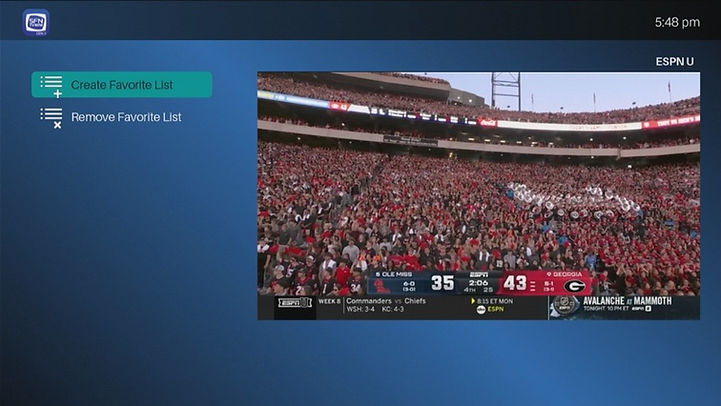

After you’ve added your channels, to see your Favorites list, we’ll press OK, then press the back button to go back to the Main Menu and go either to the Guide or Channel List.
Once you are in the Guide or Channel List, press and hold the back button for 2 seconds, then release. You will then see your Favorites List at the top, simply highlight it and press OK to see your Channels. From here, you can Remove channels from your Favorites List, by pressing OK on one of the programs within the Favorites.


To add channels to your Favorites from All Channels, you will follow the same procedure by pressing and holding the OK button on the episode/program for 2 seconds then releasing, followed by Add to Favorites.
Get to know your remote!
